How to read a SimBrief OFP, block by block
A walk through a SimBrief OFP in the order real crews read it: header, fuel, weights, route, navlog, alternates, weather and NOTAMs.
By Joeri Smits, founder of SkyNexus
A SimBrief OFP runs to many pages, and the first time you open one it looks like a wall of capitals. Real crews read it in a fixed order and only stop at the parts that matter for the flight. Once you know that order, the OFP stops being a printout you skip and becomes the most useful thing in your briefing. This is the order I use on VATSIM.
SimBrief offers several OFP layouts, modelled on different airlines, so the labels and the order of the blocks on your copy may differ from what I describe. The content is the same.
1. The header: is this my flight?
The first lines name the flight: callsign, departure and destination, the date, the aircraft type and registration, and the planned times. Check that the aircraft type matches what you are flying. It decides the weights, the fuel burn and the performance, and an A320 plan for an A321 flight is wrong everywhere below it.
2. Fuel: what you load and why
The fuel block is the heart of the OFP. Each line is a separate reserve, and they add up to the block fuel you load:
- Taxi. Fuel for the taxi out, burned before takeoff.
- Trip. From takeoff to landing at the destination, along the planned route and levels, with the forecast winds.
- Contingency. A margin for the unexpected, such as a different level or more headwind, usually a percentage of the trip fuel.
- Alternate. A missed approach at the destination and the flight to the alternate.
- Final reserve. What you must still have in the tanks when you land, typically 30 minutes of holding for a jet. Planning to land below it is not an option.
- Extra. Fuel you or the dispatcher chose to add, for weather, expected holding or a cheaper fuel price at the departure.
The minimum takeoff fuel is everything except taxi and extra. If you burn more on the ground than planned, that is the number you check before you line up.
3. Weights: what goes into the FMC
Next to the fuel are the planned weights: zero fuel weight, takeoff weight and landing weight, each with the maximum for that weight. The zero fuel weight and the block fuel are what you enter in the FMC or MCDU. If the takeoff or landing weight is close to its maximum, that is worth a mention in your own briefing, because it will show up again in the takeoff and landing performance.
4. Route and levels
The route string is what you filed and what you will program. Read it through once against the SID and STAR you expect, and look at the planned cruise level and any step climbs. On VATSIM, ATC may give you a different SID or runway; the route string tells you where the airway part starts, so you know which part of the route stays.
5. The navigation log
The navlog lists every waypoint with the airway, the planned level, the wind and temperature at that point, the distance and time from the last waypoint, and the fuel you should have left there. In flight, this is where you check your progress: compare the actual fuel at a waypoint with the planned figure and you know straight away whether the contingency is still intact. A big temperature deviation from standard or a strong headwind on one leg is also visible here before you fly it.
6. Alternates, weather and NOTAMs
Further down are the alternate plan, the METAR and TAF for every airport on the plan, and the NOTAMs. This is the longest part of the OFP and the one most pilots skip. The bits that matter are the TAF for your arrival time, and NOTAMs about runways, approaches and navigation aids at your departure, destination and alternate.
Let the briefing do the reading
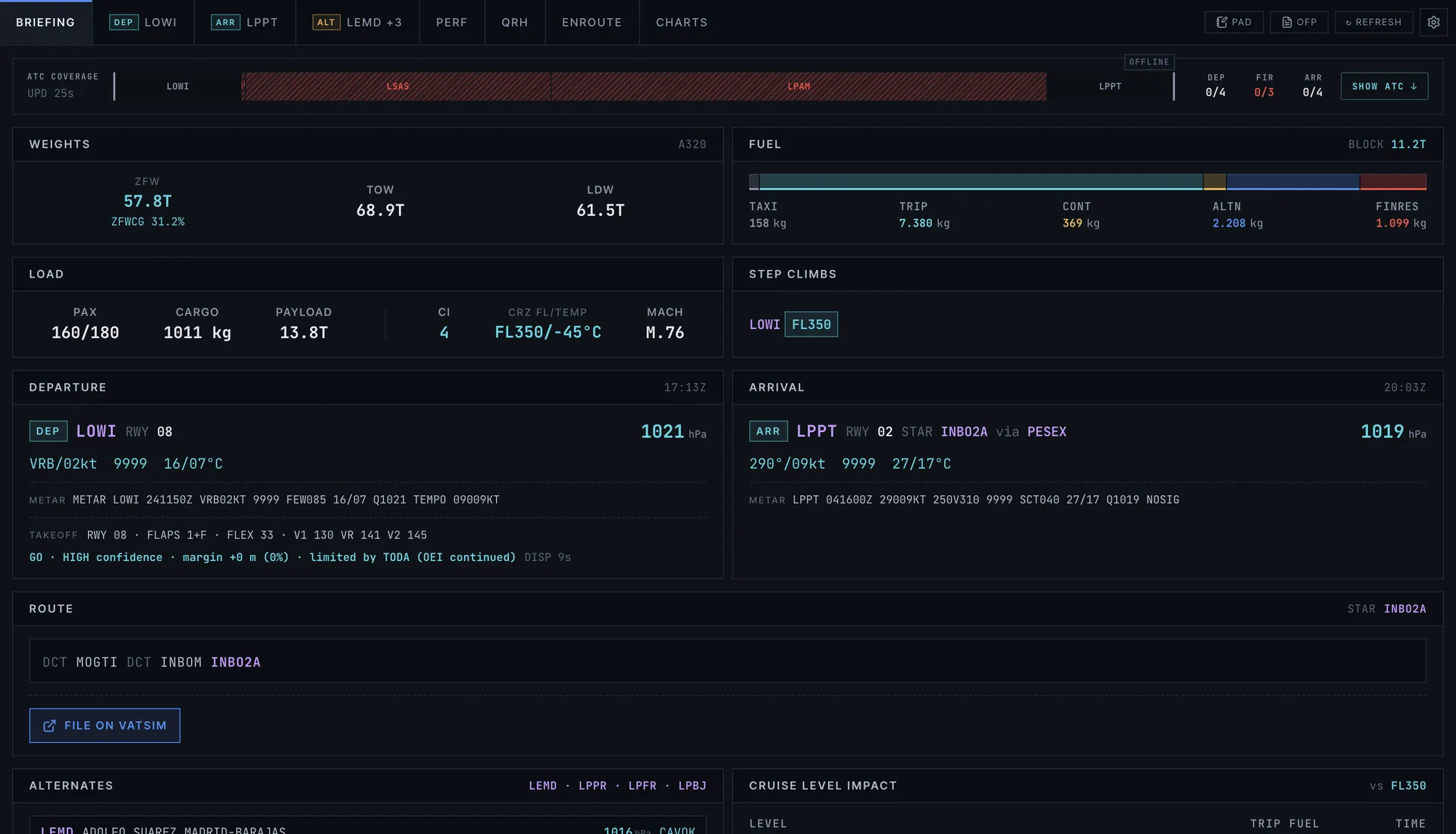
Reading an OFP well takes practice, and on a busy evening on VATSIM it is easy to miss the one NOTAM that closes your runway. That is the reason I built SkyNexus. It reads your SimBrief OFP and lays it out the way you brief a flight: the fuel and weights on one page, the threats for your flight in a banner at the top, the weather worked out into crosswind per runway, the NOTAMs filtered to your airports, and the takeoff and landing performance filled in from the same weights. It is free and runs in the browser next to the sim.
More on how the import works on the SimBrief EFB page, and on the performance side on the takeoff and landing performance page.
Questions pilots ask
- Where do I find my SimBrief Pilot ID?
- In your SimBrief account settings. SkyNexus asks for it once, or you can sign in with your Navigraph account instead, and every new OFP you generate shows up.
- What is the difference between block fuel and takeoff fuel?
- Block fuel is everything you load, including the taxi fuel. Takeoff fuel is what is left when you line up, so block fuel minus taxi.
- Why is my OFP layout different from the one in this post?
- SimBrief lets you pick an OFP layout modelled on a real airline, and each orders and labels the blocks its own way. The fuel, weights, route and navlog are in every layout.
- Do I need to print the OFP?
- No. Many pilots read it on a second screen or a tablet. SkyNexus shows the same plan as a briefing in the browser, next to any simulator.
Try SkyNexus EFB
Free, browser-based, runs alongside MSFS 2024, X-Plane or P3D. Import your SimBrief OFP and get the full briefing in under a minute.
Get Started Free