How to brief weather for a flight sim flight
A weather briefing in five steps: start from your SimBrief OFP, read the conclusion first, check the vertical profile, look at the map, then decide.
By Joeri Smits, founder of SkyNexus
For a long time my weather briefing in the sim was a pile of tabs. The radar in one, SIGMETs in another, the SIGWX PDF from SimBrief, a few METARs and TAFs. Then I tried to work out in my head what all of it meant at my altitude, at the time I would be there. That last part is the actual briefing, and it is the part no tab does for you. This post is how I brief weather now, and how you can do the same for your next flight.
Three questions, not twenty layers
Real crews do not read weather for its own sake. They read it to answer three questions about one specific flight:
- What is on my path, at my level, when I get there? Turbulence, icing, thunderstorms and SIGMET areas only matter if your aircraft is inside them at the time it is inside them.
- What is close by, or in my climb and descent? A storm 15 NM off track or icing in the layer you descend through is not a show stopper, but it changes the plan.
- Does the forecast work for my arrival? The TAF for your destination and alternate at your ETA, not the one valid right now.
Everything else is evidence for those answers. That order matters: start with the conclusion, then look at the maps that explain it.
Step 1: start from your own flight plan
A weather briefing only makes sense against a route, a cruise level and a schedule. In SkyNexus that comes from your SimBrief OFP: the route, the planned level for each leg and the time over every fix. Load the OFP and the weather is read along that route, at those levels and at those times. The forecast layers come from NOAA’s GFS model, hourly out to 36 hours, so the turbulence you see over Romania is the forecast for the hour you will be over Romania.
Step 2: read the conclusion first
The route weather list is the briefing in one place. Each line is one thing your flight meets, in flight order, with where and when. The colour says what it means for this flight, not how severe the weather is in general:
- Red is on your planned path at your planned level.
- Amber is close by, just above or below your level, or in your climb or descent.
- Blue is what is observed right now and will have changed by the time you get there, like a storm cell you reach in two hours.
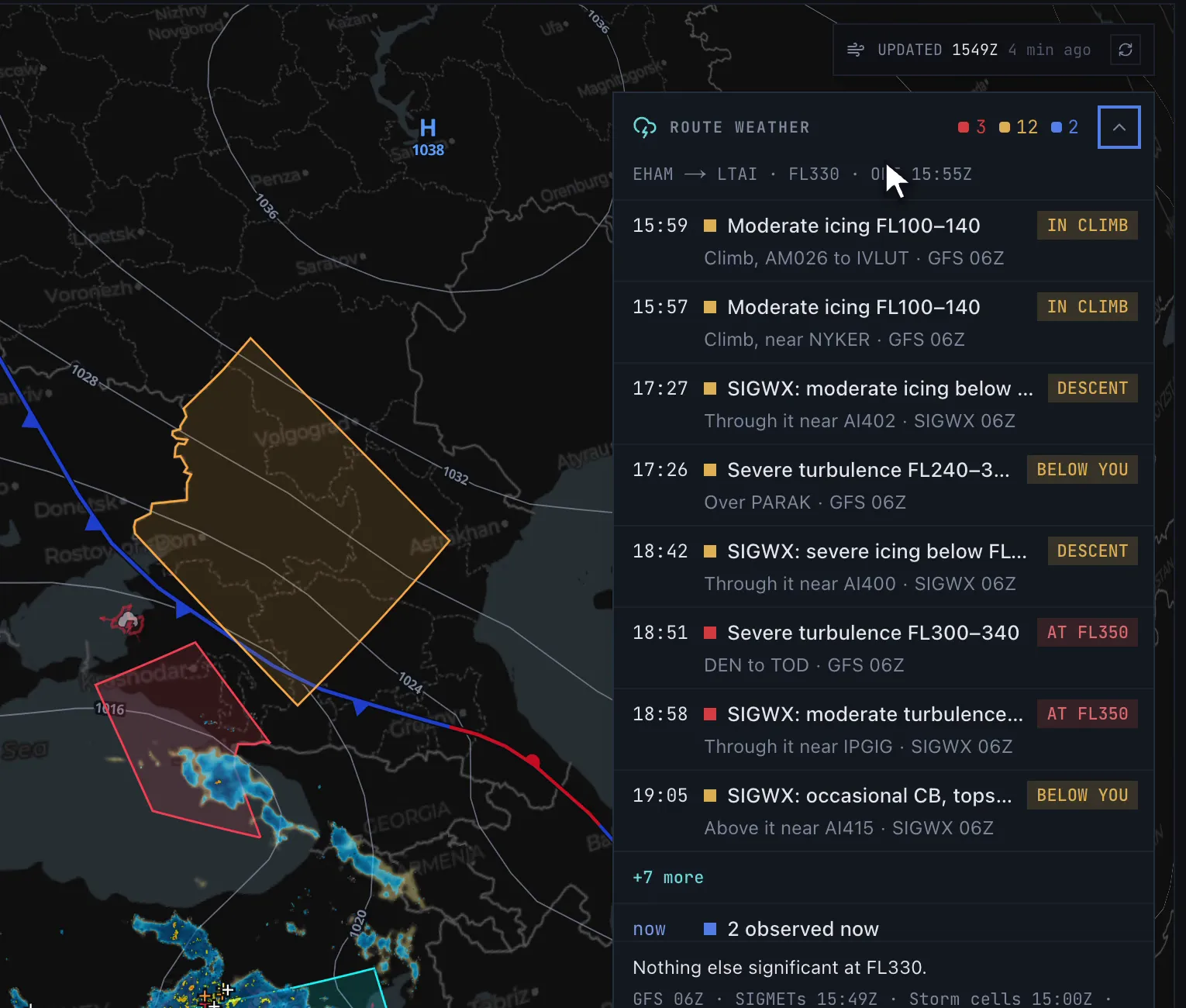
Tap a line and the map moves to that place and time, at that flight level, with the layers on that show it. Eight lines show before the list folds the rest behind “more”, and everything blue folds into one “observed now” row, so the list stays a summary.
Step 3: check it in the vertical profile
A map shows you where weather is. It does not show you whether you fly through it, over it or under it. For that I use the vertical weather profile: your flight cut open from the side, with the climb, cruise and descent drawn over winds, temperatures, turbulence, icing and cloud tops. Storm cells stand as columns up to their measured cloud top, and a strip below shows lightning up to 25 NM either side of the track.
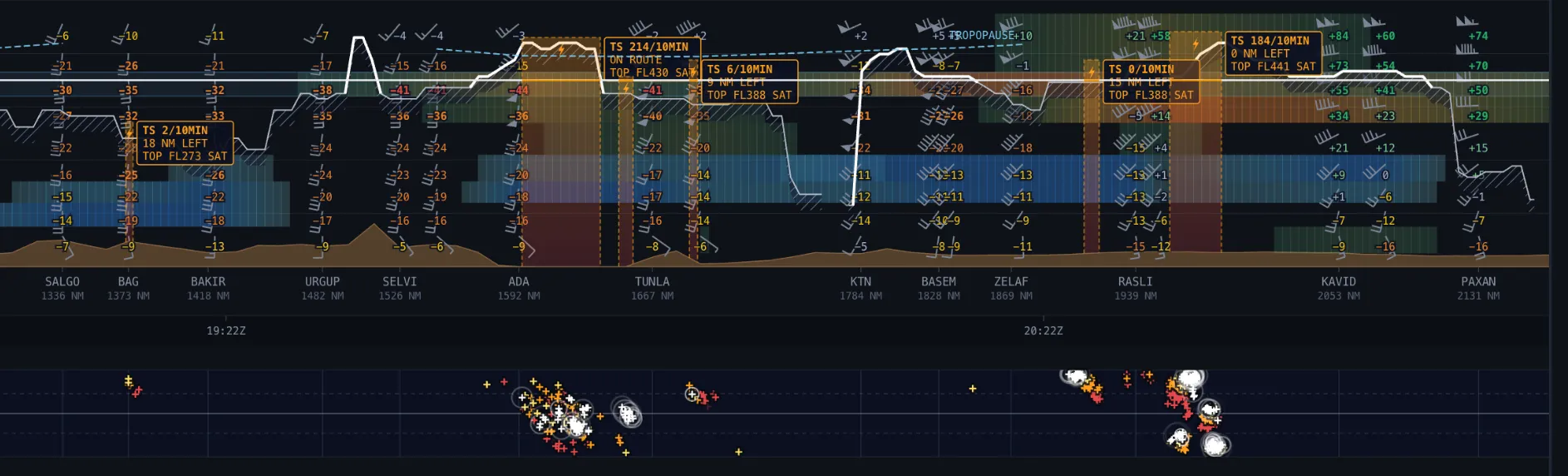
Hover anywhere and it tells you what is there, where the data comes from and how old it is. That last part matters: a satellite storm cell seen 40 minutes ago is a different thing from a forecast for three hours from now.
Step 4: look at the evidence on the map
Only now do I open the map layers, to see the shape of what the list and the profile told me. Radar, satellite, lightning and storm cells show what is happening now. SIGMETs and the SIGWX chart show the official picture. Jet streams, wind, fronts and isobars, turbulence and icing show the forecast at your level. If you only care about one question, pick a view: Storms, Turb or Icing switches on the layers for it.
Step 5: decide
A briefing ends in a decision, even if the decision is “no change”. The usual ones in the sim are the same as for real crews: a different cruise level for turbulence or wind, a deviation planned around a storm area, extra fuel for holding, a different alternate, or the anti-ice on before the descent instead of during it. The deep dives in this series go through each of them:
- Thunderstorms in the sim: storm cells, cloud tops, lightning and planning a way around.
- Turbulence forecasts: what the index means and how to pick a smoother level.
- Icing for flight simmers: where it matters and how to read it.
- The TAF at your ETA: whether the forecast works for your arrival and alternate.
Questions pilots ask
- Does this work for MSFS 2024, X-Plane and P3D?
- Yes. SkyNexus runs in the browser and reads your SimBrief OFP, so it does not matter which sim you fly. It also works on a tablet or a second screen.
- Is the weather the same as the weather in my sim?
- It is real-world weather: live observations and the GFS forecast. If your sim uses live weather, the two describe the same atmosphere, but each sim renders it in its own way, so expect differences in the details.
- How far ahead does the forecast go?
- Hourly out to 36 hours. The live layers (radar, satellite, lightning, storm cells) show the last couple of hours.
- Is it free?
- Yes. SkyNexus is free with an account. Load your SimBrief flight and the briefing is there.
Try SkyNexus EFB
Free, browser-based, runs alongside MSFS 2024, X-Plane or P3D. Import your SimBrief OFP and get the full briefing in under a minute.
Get Started Free